Golang Guide [Template]
Introduction
This guide uses the Golang based, open source, app-template and provides the foundations needed for a production-ready app.
If you prefer working in a different language than Golang, check out our other template guides or use the Postman Guide to grasp the fundamentals and implement something from scratch in the programming language of your choice!
Implementing
Grab a cup of hot cocoa (☕) and strap in.
We're now going to implement a Blacklist app using the Golang based, open source, app-template project from Noona.
The Blacklist app will implement its name, a blacklist, to automatically deny appointment requests from the Marketplace made by specific customers.
-
Follow the instructions in app-template to scaffold a new app implementation.
-
Since we're implementing an app called Blacklist, app-blacklist feels like an appropriate name. This is the repository I created from the template.
-
Go over to Noona HQ and log-in/create a company that will serve as the basis of development and testing for this new app.
-
Log into our Developer Platform and create a new app.
Name: Blacklist
Scopes: events.read, events:write, customer_groups:read, customer_groups:write, customers:read, user:read, notifications:write, companies:read
Main Redirect URI: http://localhost:8080/oauth/callback
Visibility: Public, App Store, Show in navigation
-
Click Save.
In the general settings tab we see:
- The Client ID
- The Client Secret
If we navigate to the dashboard we see:
- That our app is not approved — which is the normal state for a new app, and does not hold anything up
If we jump over to the app store, which is located in the settings hub, we see our app in the list.
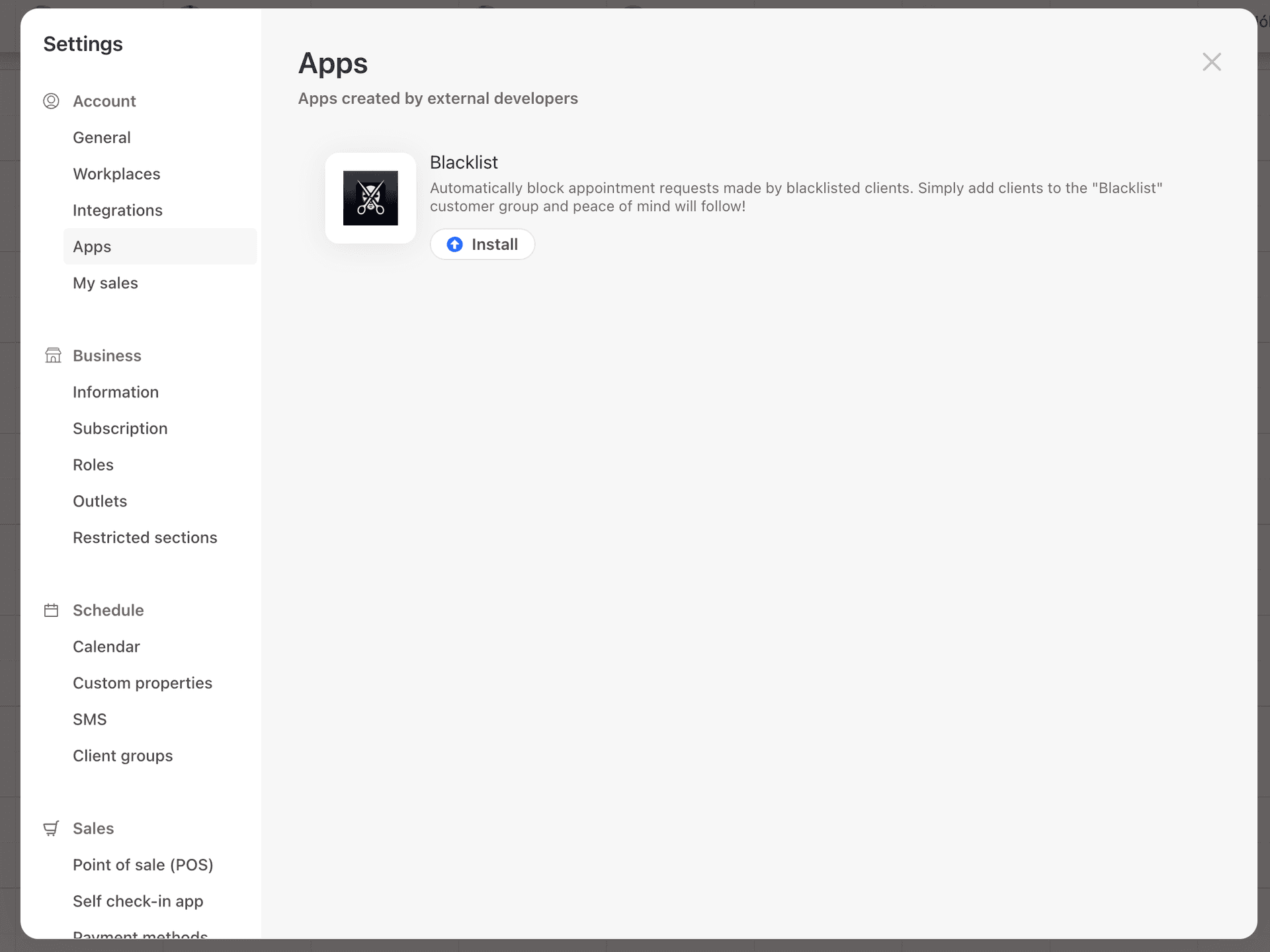
Since the app is not approved, we are the only ones that see it. This gives us peace and quiet to implement the functionality behind it.
In this guide we are building a Blacklist app for every company on Noona, so once we're done we will request approval and it will appear in the App Store for everyone.
If you are building for your own business, or for a single client, that last step never applies — an unapproved app is the correct, permanent end state. See App Approval.
-
Configuring our application.
Now that we have a client_id and a client_secret we can jump to our freshly scaffolded golang code and witness the magic.
The main config file we use is services/noona/config.go:
 package noona

 type Config struct {
     BaseURL         string `default:"https://api.noona.is"`
     AppStoreURL     string `default:"https://hq.noona.app/week#settings-apps"`
     ClientID        string `default:"G7NN26z5iAPhUFx2cvzcplEb"` // From our just-created app
     ClientSecret    string `default:"z9zSGtquC51PUW3fI4uO4kCW"` // From our just-created app
     // Our app will rely on webhooks to implement the Blacklist.
     // We need to know where the webhook should be sent.
     AppBaseURL      string `default:"http://localhost:8080"`
     // The Bearer token that all webhooks will be sent with
     AppWebhookToken string `default:"very-secure-token-secret"`
 }
It's not recommended to store credentials in the codebase. And the Client Secret should be kept very secure.
The neat thing about the structure of the golang project is that we can set it via an environment variable like this:
$ NOONA_CLIENTSECRET=z9zSGtquC51PUW3fI4uO4kCW -
Let's test it out!
Run the project using the memory store.
$ STORE=memory make run
Output:
go run main.go
2024-03-11T13:59:29.283Z	INFO	Server started on :8080
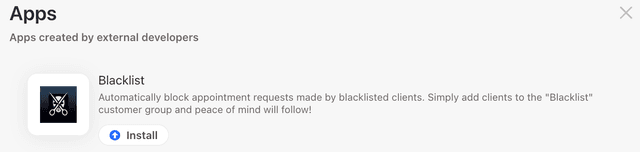
Navigate to the app list and click Install.
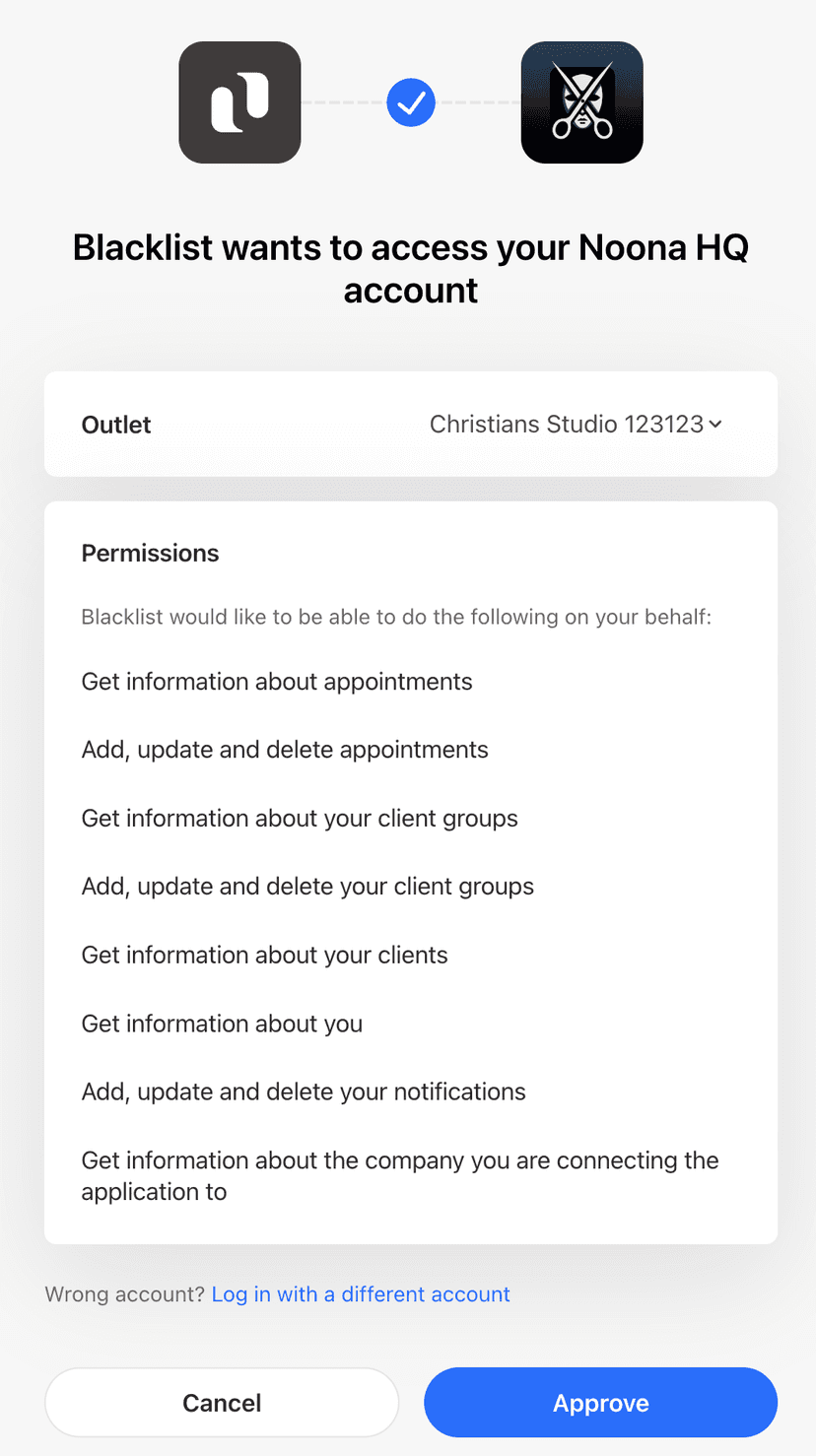
Click Approve on the consent screen.
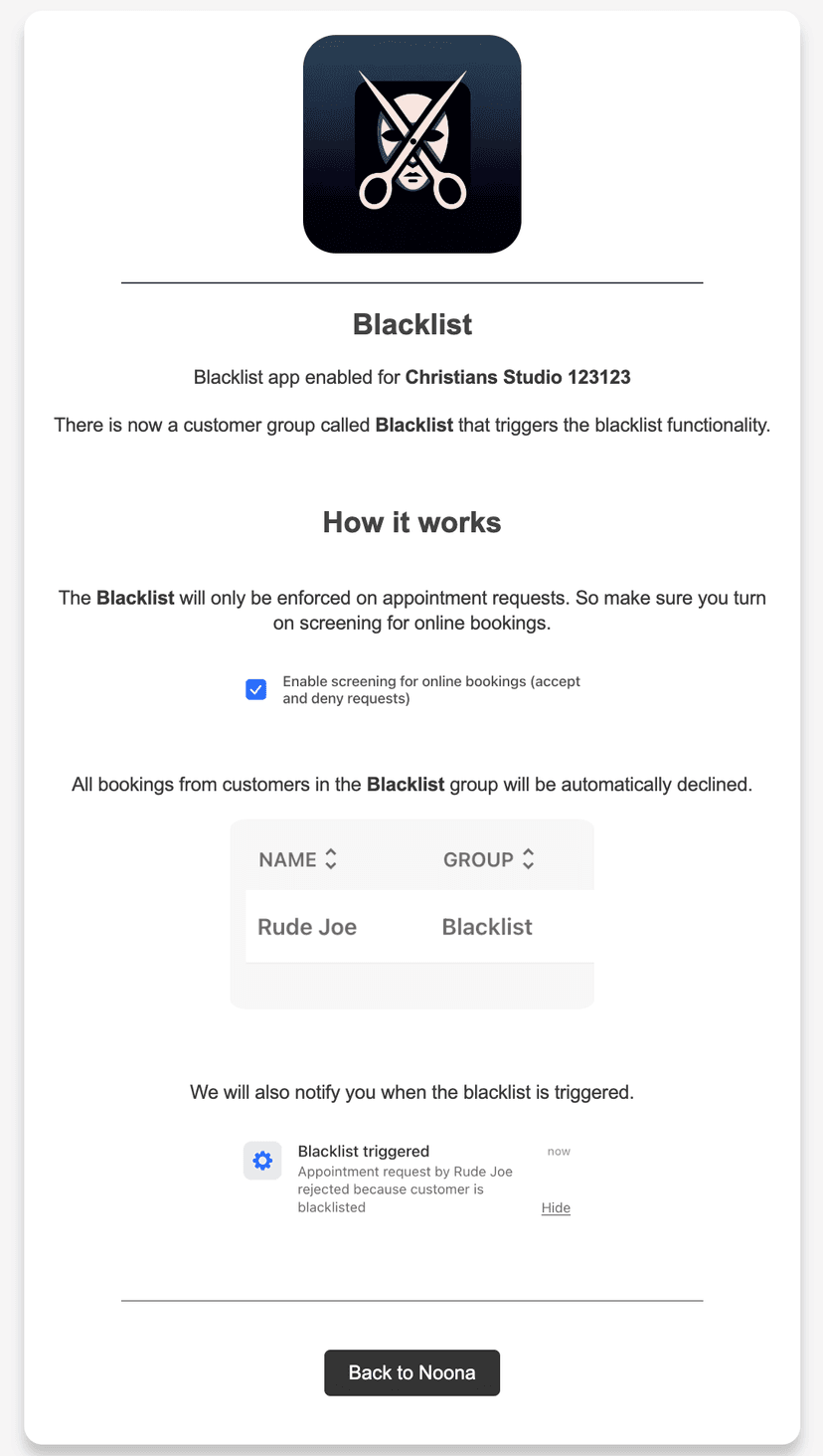
We see the landing page for our app, I've added information specific to the Blacklist so you're seeing something more raw.
If we look at our terminal we see that something happened!
2024-03-11T14:04:34.930Z	INFO	Onboarding user to app
2024-03-11T14:04:36.093Z	INFO	User onboarded to app	{"email": "[email protected]", "company_id": "4aF8uQmKtowFKdguf"}
This means that we successfully exchanged the authorization code (Which was can see in the URL above) with an OAuth token (Refresh+Access token) and created the user in our memory store.
If we click Back to Noona on the landing page for our app we get sent back to the app list within Noona.
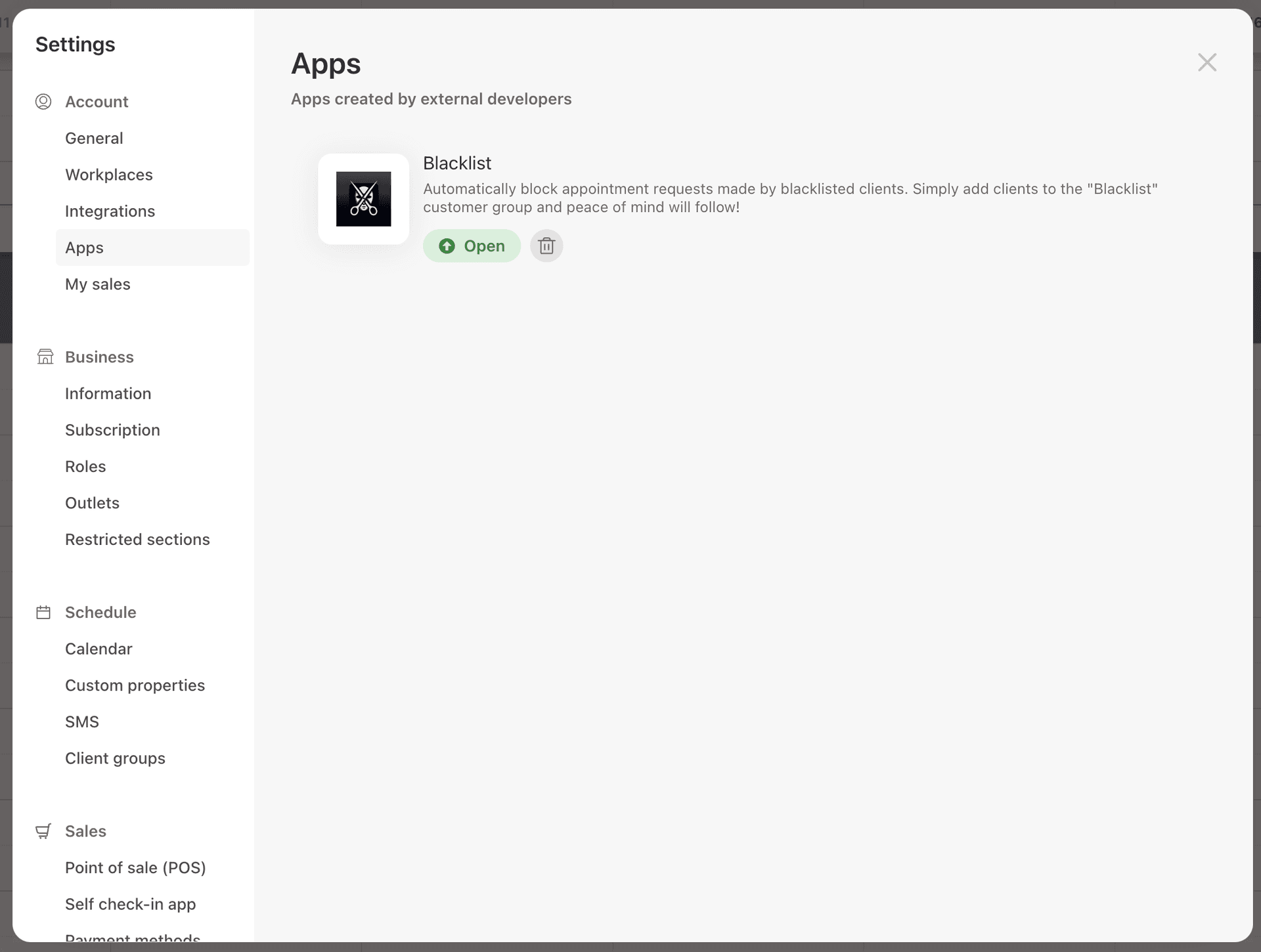
The app is now installed!
An app is considered installed when an OAuth Token exists in Noona tied to that specific app. Since we successfuly exchanged the authorization code above for an OAuth Token the Blacklist app is marked as installed in the app list.
This means that we can perform queries and mutations against Noona API within the scopes defined by our application.
If a user presses the trash can icon next to our app. The OAuth Token is deleted and:
- The app is no longer marked as Installed
- Our access token does not work
- We are not able to get a new access token with our refresh token
-
But what happened exactly?
I recommend looking through the code to get the full picture. But in short:
The redirect URL we specified earlier has the following path: /oauth/callback
When the user clicks Approve on the consent screen Noona redirects the user to:
http://localhost:8080/oauth/callback?code=abcdef&state=xyzThe callback handler main.go:62 does the following:
- Extracts the code from the query parameters
- Exchanges the code for an access token and refresh token
- Uses the access token to fetch user information from Noona API
- Stores the user information and tokens in the configured store
- Redirects the user to the app landing page
So the flow is:
User clicks install → Consent screen → Approve → Redirect to app → Code exchange → User onboarded → App landing page
The access token is used to make API requests to Noona on behalf of the user.
The refresh token is used to get a new access token when the current one expires.
Since we have both tokens stored, we can now make API requests on behalf of the user whenever we want (as long as the user hasn't uninstalled the app).
-
Let's look at the token endpoint!
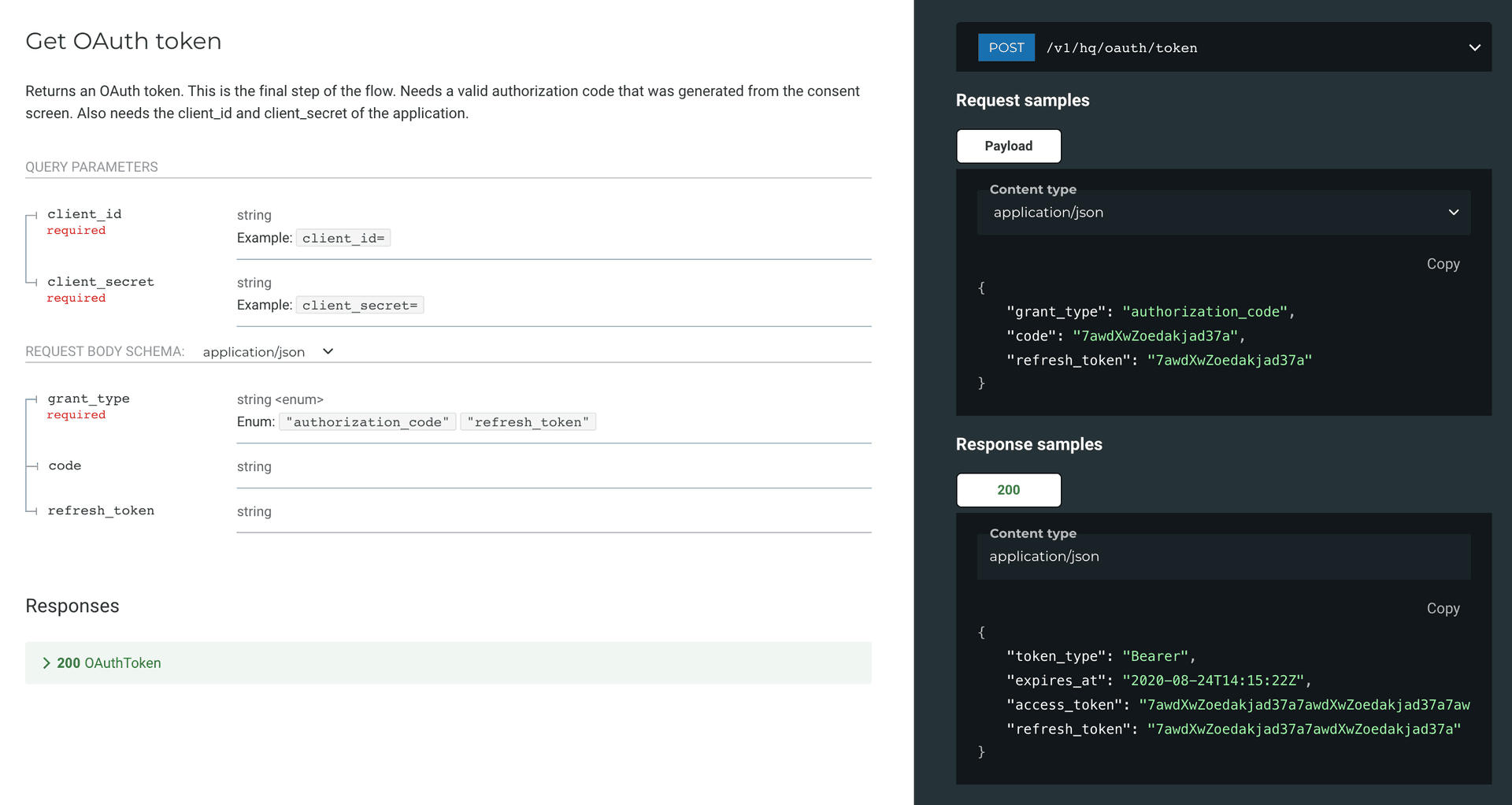
The endpoint that exchanges the code for an access token and refresh token is: https://api.noona.is/v1/hq/oauth/token
Here's what the request looks like:
Client Authentication:
The recommended way to authenticate is using HTTP Basic Authentication:
Authorization: Basic base64(client_id:client_secret)In Go, this looks like:
req.SetBasicAuth(clientID, clientSecret)Request body:
- code: The authorization code we received from the consent screen
- grant_type: Must be
authorization_codefor the initial exchange
Response:
- access_token: Used to make API requests on behalf of the user
- refresh_token: Used to get a new access token when the current one expires
- token_type: Always
Bearer - expires_in: Number of seconds until the access token expires (usually 3600 = 1 hour)
The access token expires after 1 hour, so you need to use the refresh token to get a new one.
-
Now let's implement the Blacklist functionality!
The Blacklist app will:
- Listen for event creation webhooks from Noona
- Check if the customer is on the blacklist
- If they are, automatically decline the appointment request
- Send a notification to the service provider
This is where the real magic happens - we're integrating with Noona's webhook system to automatically process appointment requests.
But first, let's make sure our webhook endpoint is accessible from the internet. We'll use ngrok to expose our local server:
# Install ngrok if you haven't already
$ brew install ngrok

# Expose your local server
$ ngrok http 8080
This will give you a public URL that forwards to your local server. Update the AppBaseURL in your config to use this URL.
Now we can register our webhook endpoint with Noona and start processing appointment requests!
Let's continue with the implementation in the next section...
Testing the Installation
To test that everything is working:
- Make sure your app is running locally
- Go to the app store in Noona HQ
- Install your app
- Check the logs to see the OAuth flow in action
You should see something like this in your terminal:
2024-03-11T14:04:34.930Z	INFO	Onboarding user to app
2024-03-11T14:04:36.093Z	INFO	User onboarded to app	{"email": "[email protected]", "company_id": "4aF8uQmKtowFKdguf"}
And the app should be marked as installed in the app store:
That's it! You've successfully created and installed your first Noona app. The next steps would be to implement the actual business logic of your app and handle webhooks from Noona to react to events in real-time.