Claude
Connect your Noona account to Claude and ask questions about your business in plain language — your schedule, your customers, your sales. Depending on the permission level you choose, Claude can also make changes for you, like moving a booking or blocking time off.
Before you start
- A Noona account
- Any Claude account — Free, Pro, Max, Team, or Enterprise
Connect Noona to Claude
-
In Claude, go to Customize → Connectors.
-
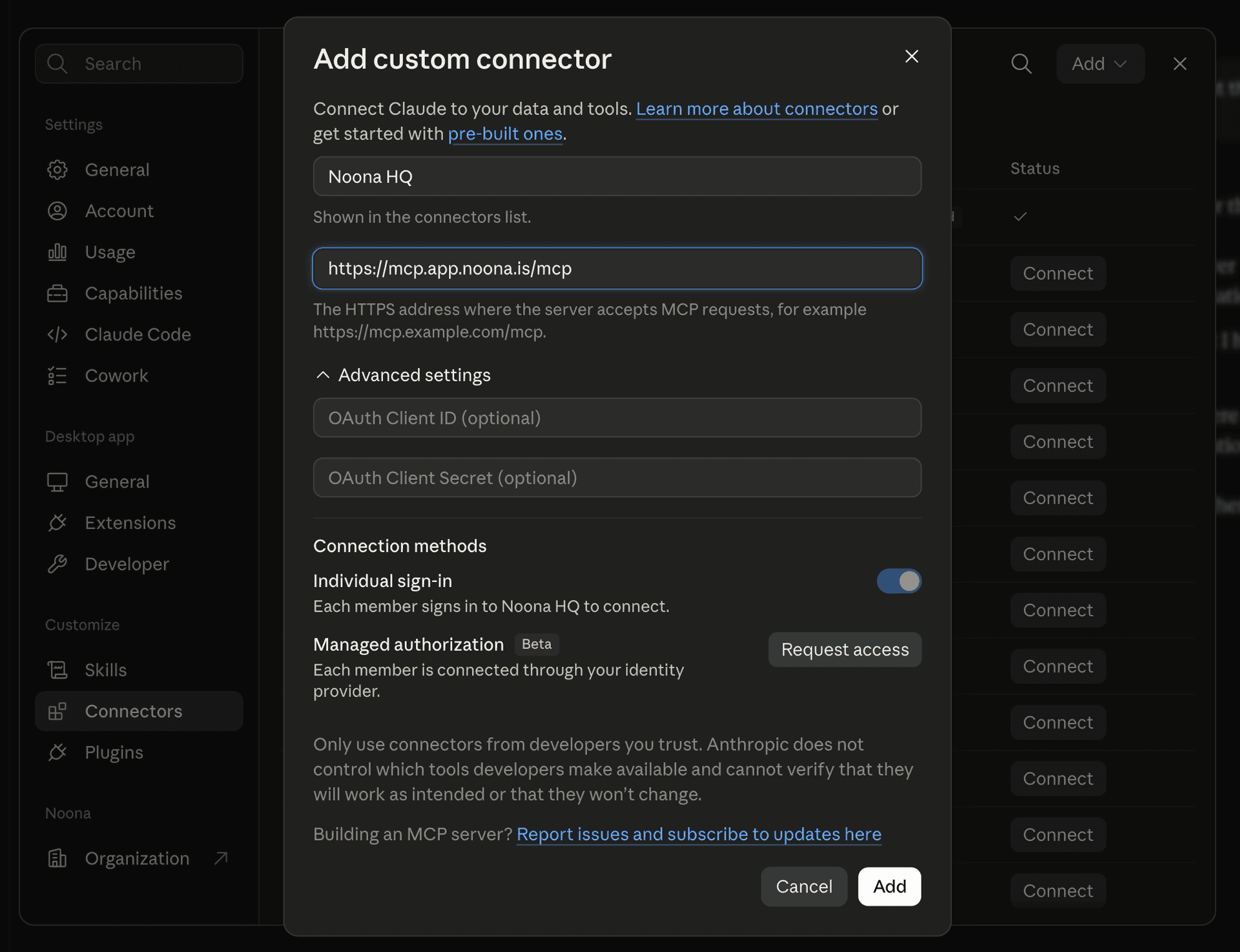
Click Add custom connector.
-
Enter a name and the URL:
- Name:
Noona HQ— or your company's name, which is worth doing if you manage more than one (see below) - URL:
https://mcp.app.noona.is/mcp
- Name:
-
Click Add.
-
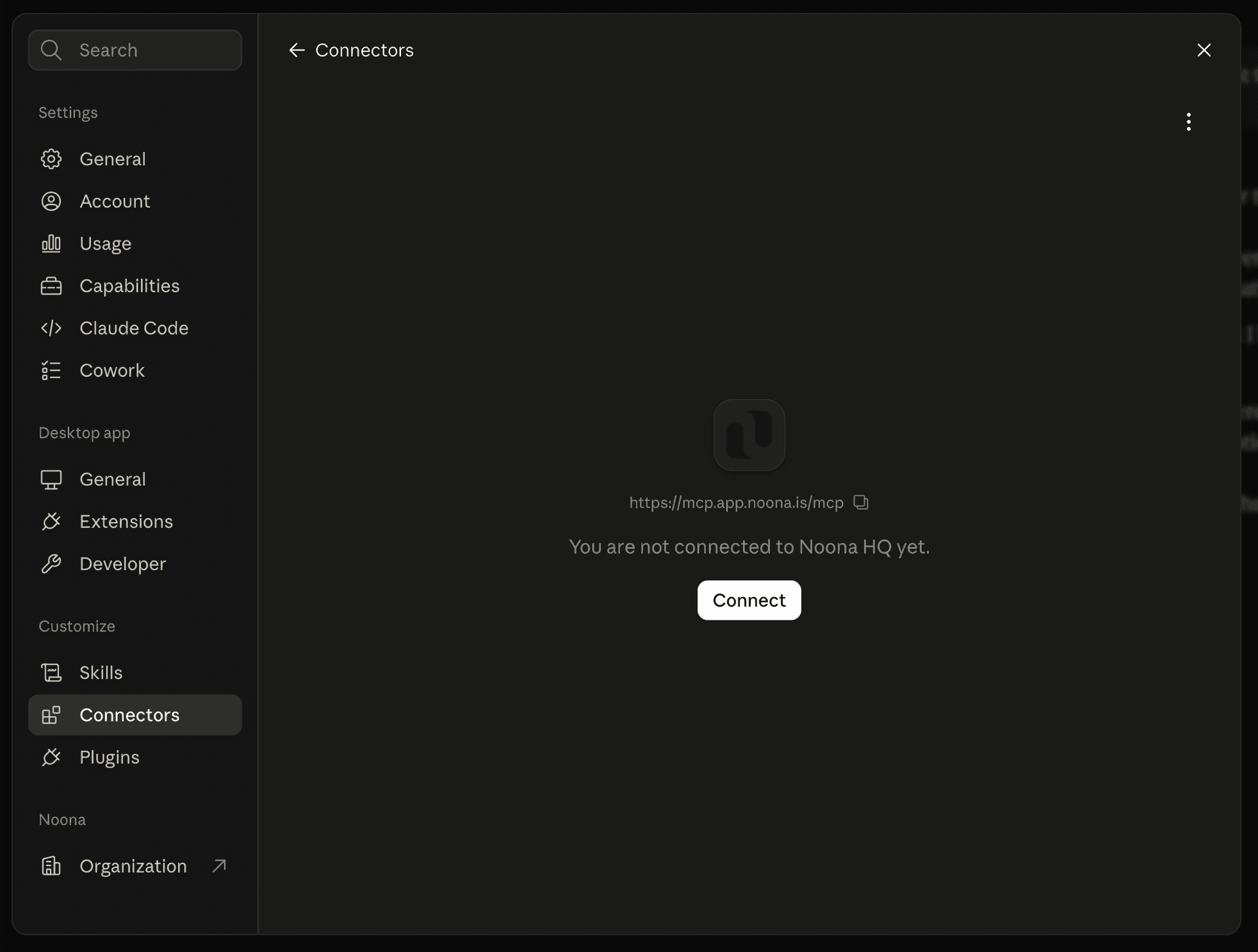
Click Connect.
-
Sign in to Noona if you're not already logged in.
-
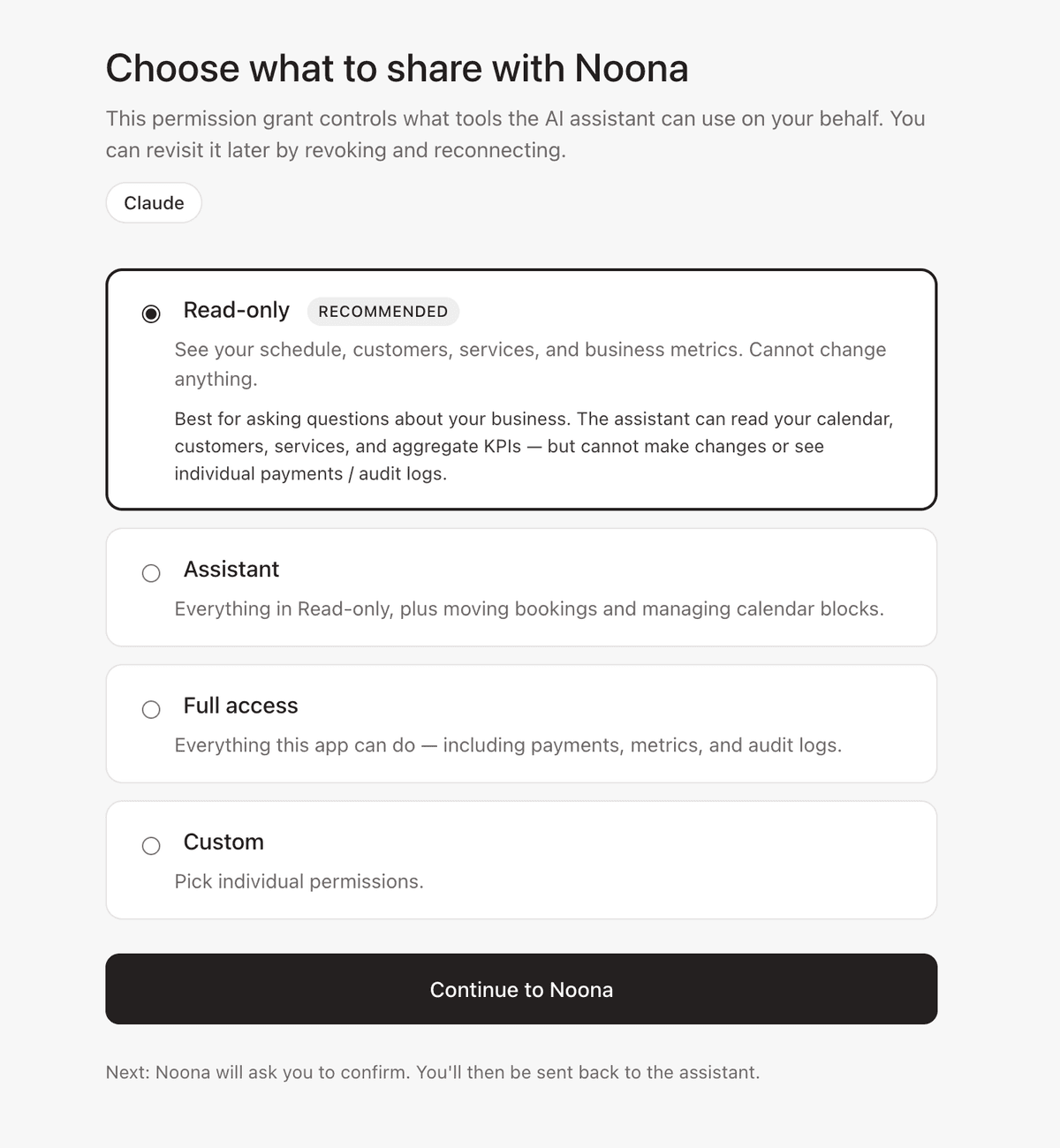
Pick the permission level you want to give Claude, then click Continue to Noona.
-
Choose the company you want to connect, then click Approve.
That's it — Claude is connected.
Name it after your company
Claude uses the connector's name to tell your companies apart, so naming it after the business lets you point at one directly:
"Check my schedule at Pro Barber for the next week."
Each connector is tied to a single company, so if you manage several, add one connector per company and name each after its business. The rest of this article calls the connector Noona HQ — swap in whatever you named yours.
Choosing a permission level
You pick this during setup. Start with the lowest level that does what you need — you can always reconnect with more.
| Level | What Claude can do | Good for |
|---|---|---|
| Read-only (recommended) | Read your calendar, customers, services and headline KPIs. Cannot change anything, and cannot see individual payments or audit logs. | Asking questions about your business |
| Assistant | Everything in Read-only, plus rescheduling bookings and blocking or unblocking time. Still cannot see individual payments or audit logs. | Help managing your calendar |
| Full access | Every permission the connector supports, including payments and business metrics. New tools are enabled automatically as they ship. | Full assistance across the business |
| Custom | Hand-pick exactly which permissions to grant. | Fine-grained control |
Claude only sees the tools your permission level allows, so it can be honest about what it can and can't do.
Before Claude changes anything, it asks you to confirm. Reading your data never needs confirmation; anything that edits a booking, a customer record or your books always does.
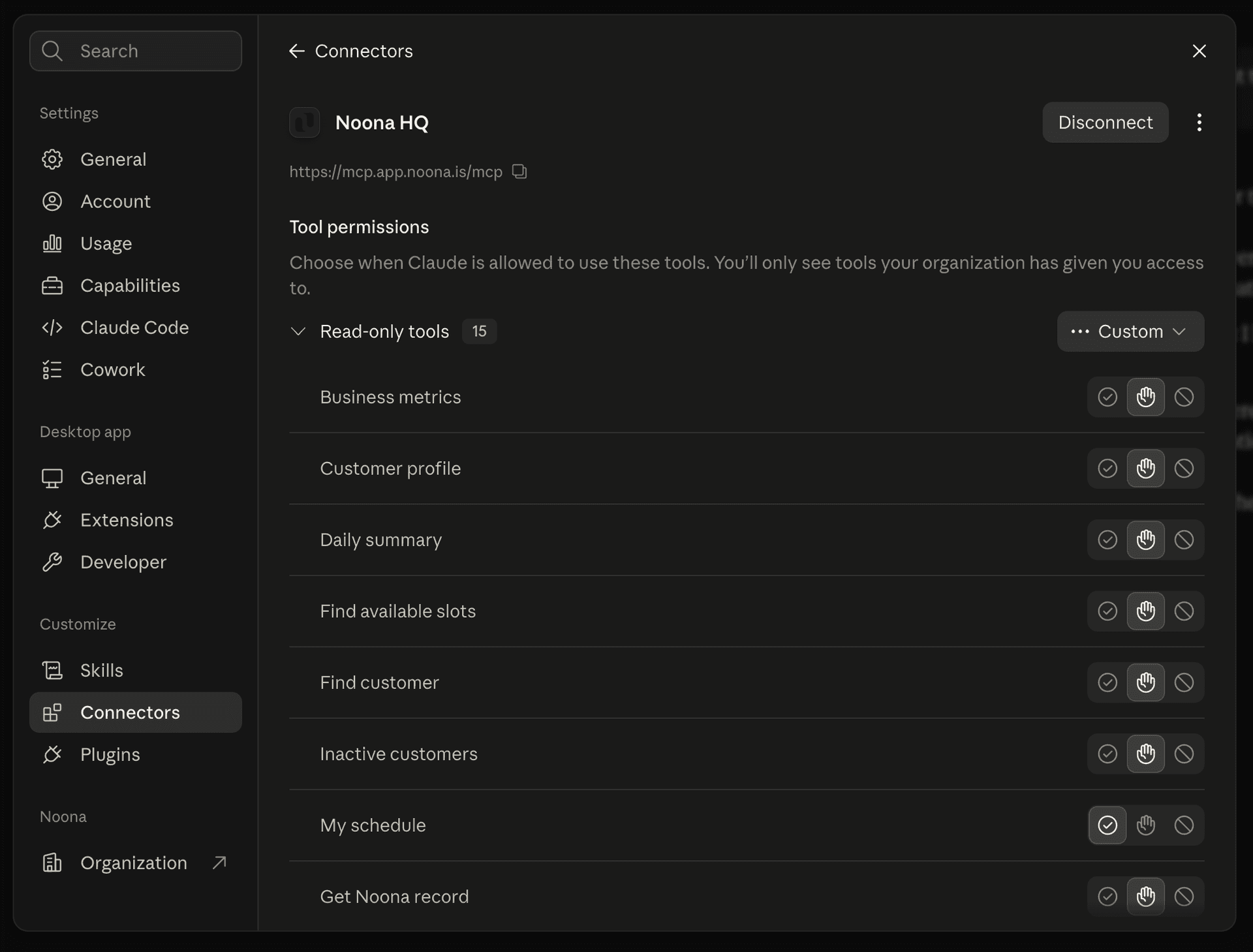
You can fine-tune this per tool in Claude under Customize → Connectors → Noona HQ, where each tool can be set to run automatically, ask first, or stay off.
What you can ask
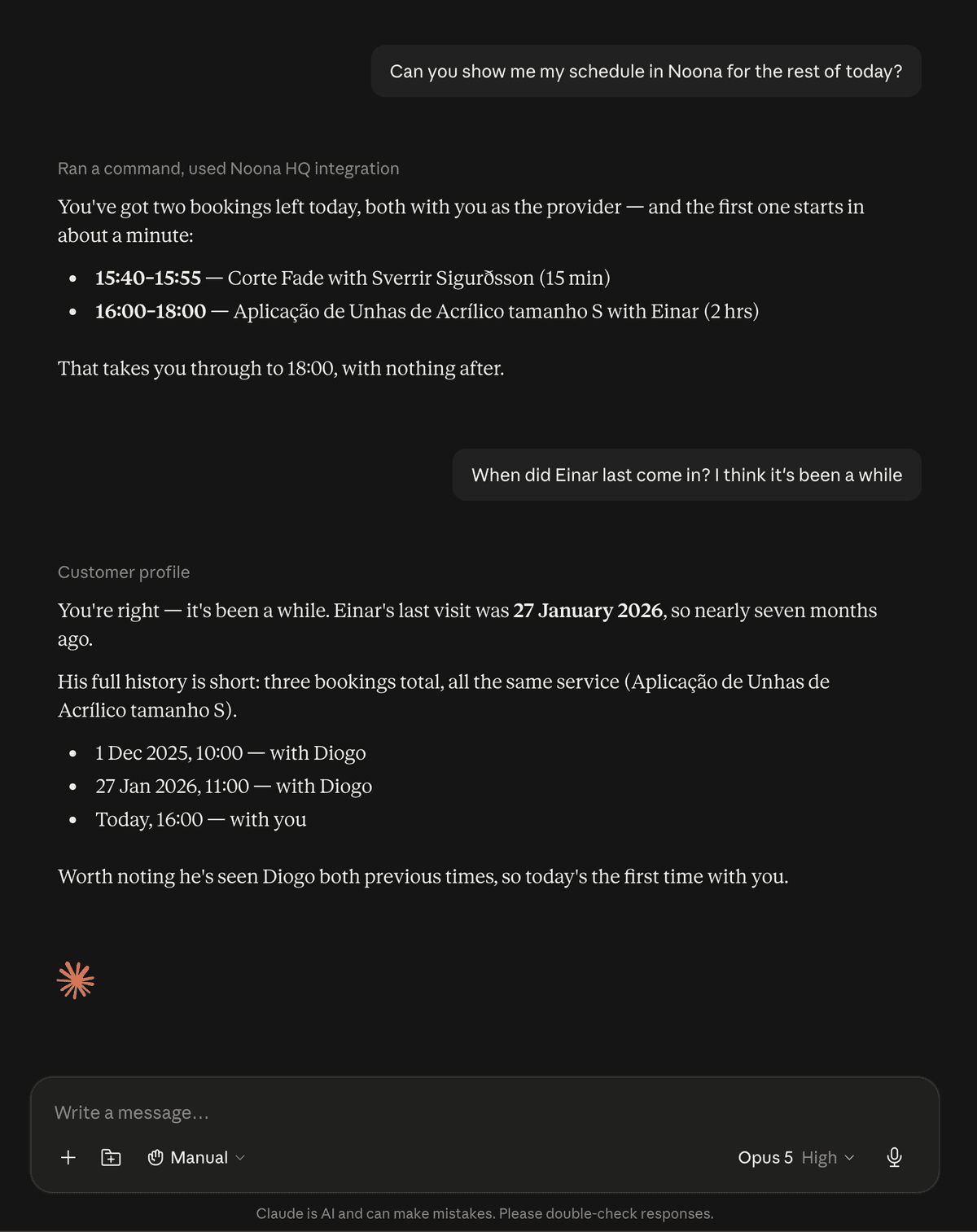
- "What's on my calendar today?"
- "Who's working tomorrow afternoon?"
- "How did today go?"
- "Who are my top customers this quarter?"
- "Which customers haven't booked in the last six months?"
- "How were sales last week, broken down by employee?"
- "What do we charge for a colour treatment, and how long does it take?"
- "Move Anna's 2pm on Friday to Thursday at 10." (needs Assistant or higher)
Managing access from Noona
The Noona AI app is where you see and control every AI assistant connected to your company. One app covers them all, so you can connect several assistants and manage each one separately.
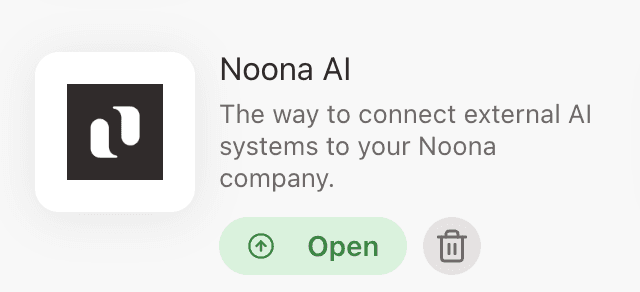
In Noona HQ, go to Settings → Account → Apps and click Open on the Noona AI card.
See what's connected
The Connected tab lists every assistant with access to your company: which permission level it was given, who authorized it, when it connected, when it was last active, and exactly which tools it can use.
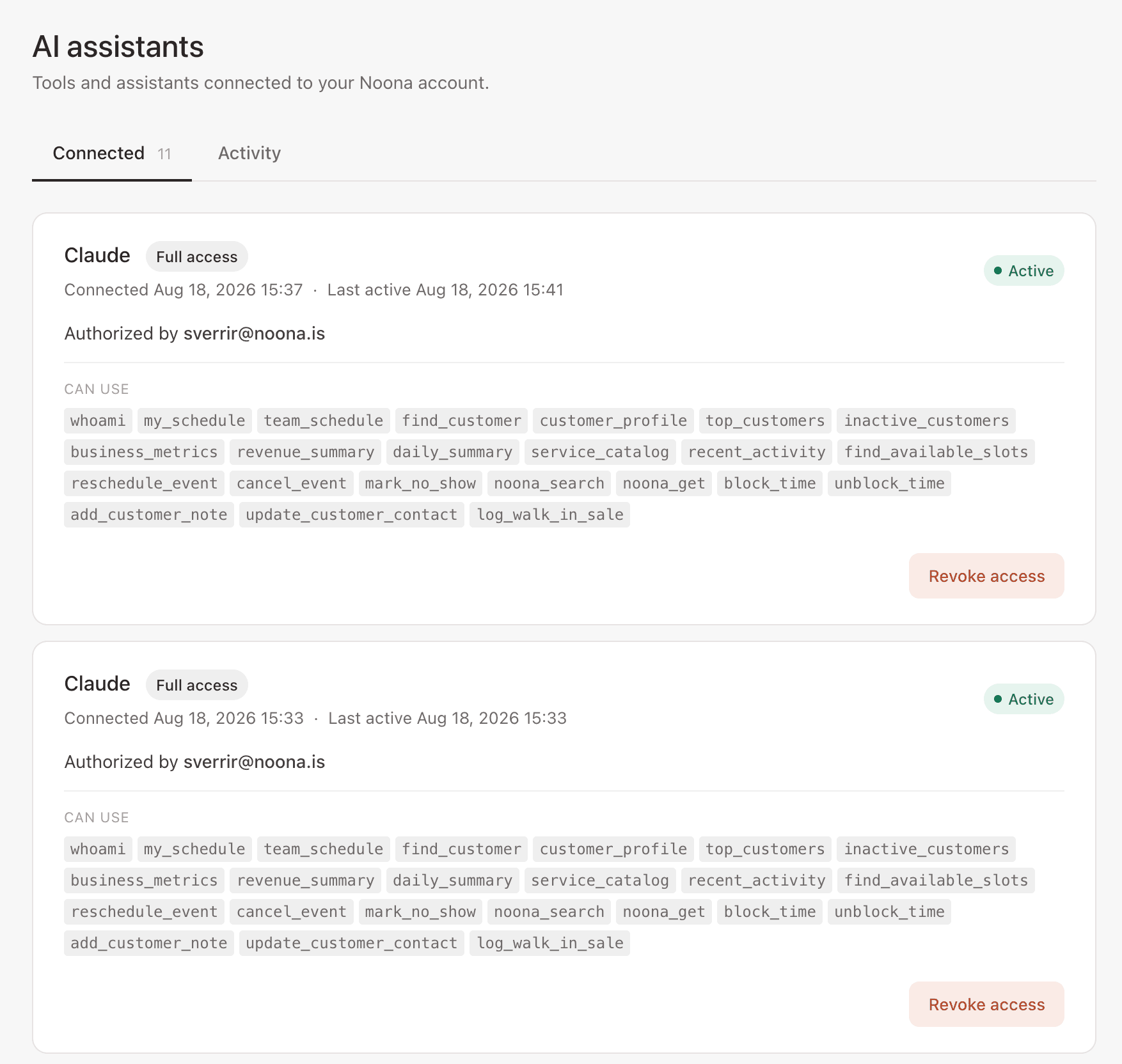
Click Revoke access to disconnect one. That assistant is signed out immediately and the others are unaffected. To reconnect — or to change a permission level — add the connector again in Claude and approve a new level.
Review what's been done
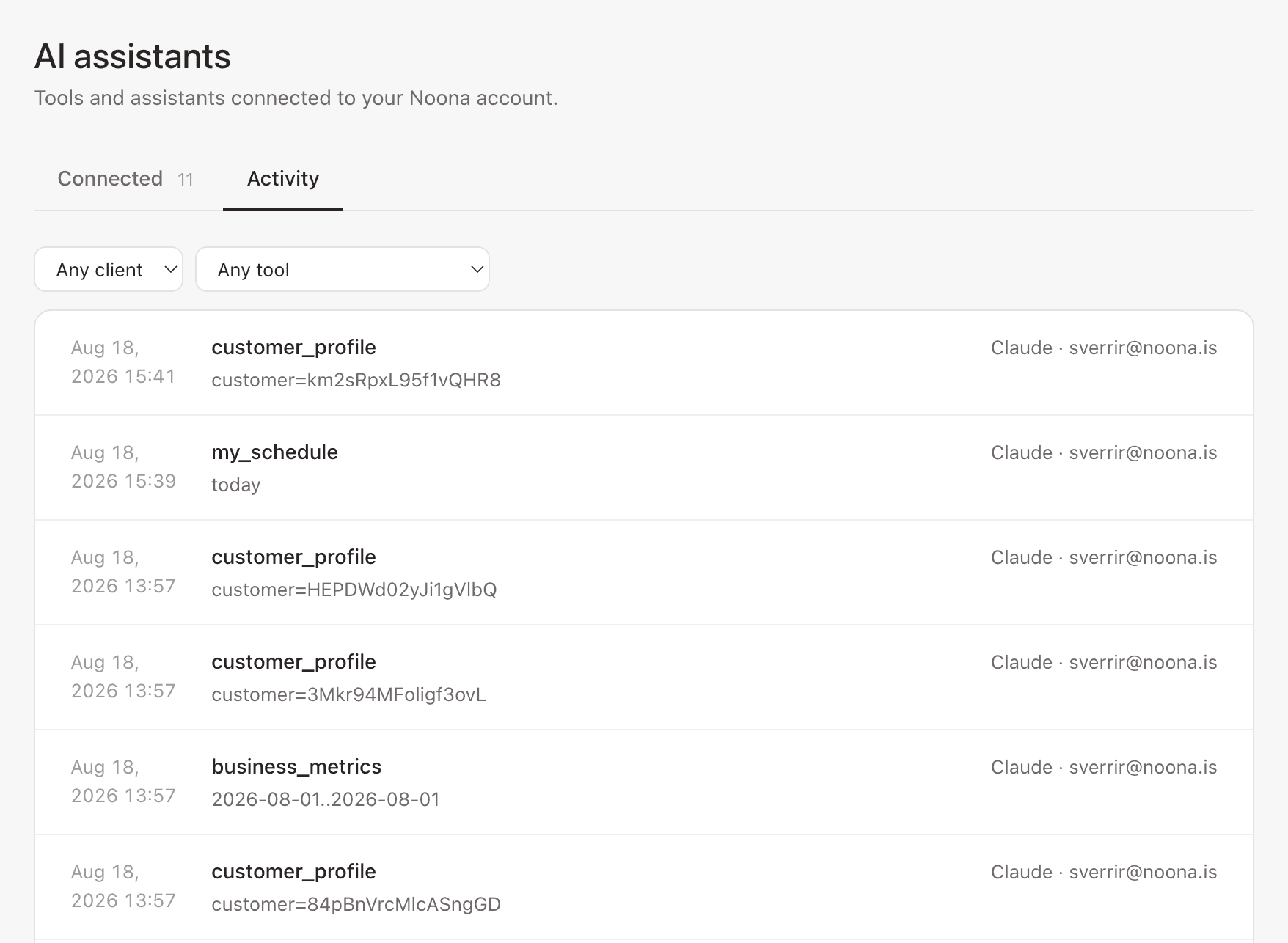
The Activity tab is an audit log of every action taken through the app: the tool that ran, when, and which assistant and user it was authorized by. Filter by client or by tool to narrow it down.
Removing the connector from Claude
Go to Customize → Connectors, select Noona HQ, and click Disconnect.
Troubleshooting
Claude can't reach the server. Check the URL is exactly https://mcp.app.noona.is/mcp, with no trailing slash or extra characters.
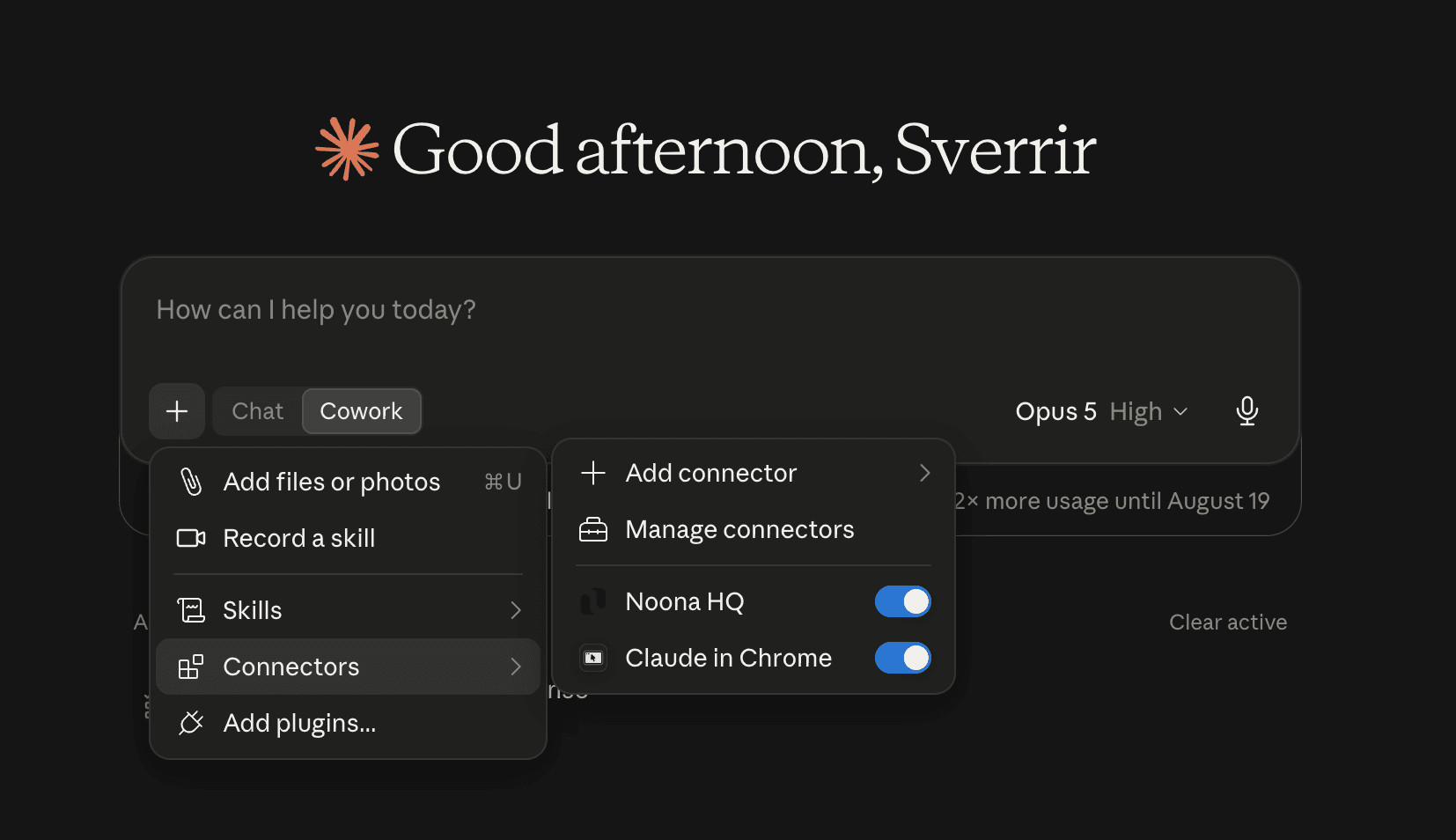
Claude isn't using Noona in a conversation. Connectors can be switched on and off per chat. Click the + button in the message box, go to Connectors, and make sure Noona HQ is turned on.
Claude says it can't do something you expected. Your permission level is probably too low — for example, rescheduling needs Assistant or higher. Revoke the connection and add it again, choosing a higher level. Permission levels are fixed for the life of a connection, so changing them always means reconnecting.
Claude is showing the wrong location's data. Each connector is tied to one company. Check which connector you're using, and add a separate one for the other location if you haven't already.
You've been signed out. If your Noona session expires, Claude will ask you to sign in again. Reconnect and you're back where you were.
Still stuck? Reach out and we'll help.